


Online Scout Manager (OSM) is a comprehensive digital platform that helps us manage our activities, track member progress, and keep you informed about your child’s Scouting journey. OSM helps us streamline our administration and manages communication between leaders and parents. It replaces traditional paper-based record keeping with a modern, accessible digital solution that works on computers, tablets, and smartphones.
For parents OSM provides a “Parent Portal” which allows you:
- 24/7 access to your child’s Scout information
- To contact the Leaders
- See the programme of activities and upcoming events
- To make online payments for termly subs and events
- Inform leaders of absences
- See the history of emails sent by leaders
When your child joins one of the sections (Beavers, Cubs, Scouts or Explorers) at St Mark’s OSM you will receive an invite to access OSM. Many parents access the system on a computer or tablet by navigating to the login page.
Adding OSM to your phone
The most effective way of using OSM is to add it your smartphone’s homescreen. This works on both IPhone/Ipad and Android devices. Adding OSM to your homescreen means it behaves very much like a smartphone application – showing notifications and providing easy access to all the OSM features.
Iphone
- Open the Safari browser on your phone and navigate to Online Scout Manager https://www.onlinescoutmanager.co.uk/login.php
- On the safari toolbar at the bottom of the screen tap the share icon

- From the sharing menu, scroll down and locate the “Add to Home Screen” option and tap it.

- An OSM icon will now be added to your home screen.

Android
- Open the google Chrome browser and navigate to Online Scout Manager https://www.onlinescoutmanager.co.uk/login.php
- On the browser toolbar tap the 3 vertical dots in the top right of the screen
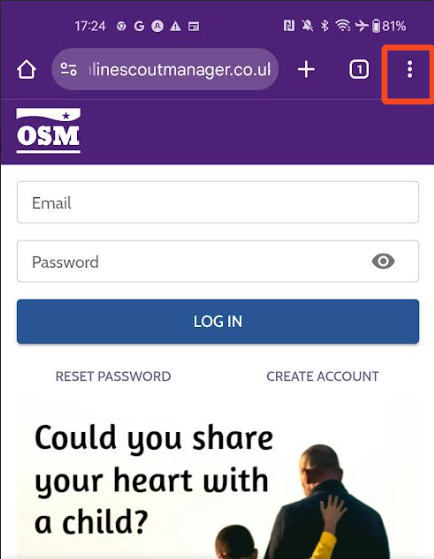
- In the menu tap the “Add to Home Screen” option

- Choose the option to “install” the app and this will place an OSM icon on your homescreen

Tapping the OSM Icon from your homescreen will launch OSM like a native app on your mobile device. Once logged in you will see the the Parent Portal Dashboard. At the top of the dashboard you will see upcoming meetings and events . Scrolling down you will see the record card for your young person along with notifications of any outstanding actions (e.g. invites to events).
Tapping on events and meetings in the list will show you details of the meeting/event including any kit that may be needed for the meeting. Parents may find it helpful to check OSM once a week, prior to meetings, to stay informed of programme updates and changes.

Upcoming meetings and events

Young Person’s record with with any outstanding actions
Navigating the Parent Portal
Tapping the 3 lines in the top left of the screen will open the parent portal menu showing your young person and the name of the section they are currently a member of. Tapping their name will display the menu of options as shown in the screenshot.

- Payments – Lets you see any past and upcoming payments for termly subs and events.
- Events – Lists upcoming events that your young person is attending and also allows you to sign up to events.
- Programme – Shows the programme of weekly meetings and allows you to inform leaders if your young person will be absent.
- Badges – shows the badge record for your young person.
- Personal Details – Allows you to edit your contact details and update your young person’s medical and allergy information.
- Emails – Allows you see a list of emails sent by leaders and read past emails.
- Gift Aid – Allows you to make or update your Gift Aid declaration.
- Access – Allows you to see who can access the parent portal for your young person
Updating your child’s information
From the parent portal menu choose the “Personal Details” option. The personal details page has a number of sections. At the top of the page are cards to enter your details. An emergency contact (e.g. a relative) and doctors details. The “Member” card relates to the young person and does not need to be completed. It is important that the Pimary and Secondary contact details are kept up-to-date as these will be used by leaders in the event that they need to get in contact with you.
It is also important to ensure that details of any relevant medical conditions, allergies and dietary requirements are kept up-to-date.
Every you check and/or update details in OSM be sure to click the “I confirm these details are correct” button in the yellow area at the top of the page. This lets leaders know the information is up-to-date and correct.

Contact details

Essential information & consents
Informing the leaders of absence
If you need to inform the leaders that your young person will not be able to make a particular meeting then this can be done via the “Programme” option from the parent portal menu. After selecting the programme menu, tap the “Edit” button on the meeting and put a brief note so explain the absence. Tap the save button, which will then inform the leaders.

Contacting the leaders
A quick way to contact the leaders via email is to use the “Email Leaders” button from the parent portal dashboard. Tapping the Email Leaders” button will launch your device’s email application with the leader’s email address.

See emails sent by the leaders
OSM keeps a record of all the emails sent to parents by the leaders. The “Emails” menu option provides a quick route to accessing these without having to search through your inbox. To view an email simply tap the message subject and you’ll be taken to the email message.
